Sign in
Sign in with the Silver City Microsoft account to read and update the invoice workbook.
Sign in with the Silver City Microsoft account to read and update the invoice workbook.
Loading...
Remove a device that is no longer used, then register this one.
Tap your name to start. Your name is saved against every count you make. Sign out when you finish.
Enter the admin PIN.
Archive a customer to take them out of the customer search (you can restore them any time). Pick a customer, then switch off anything that customer never uses. Users will not see hidden articles. To add an article that is not on their sheet yet, add the column in Excel first, then it appears here.
Users cannot change an S.No once the count is saved. Enter the wrong number and the right one; every matching row on this customer's tab is changed.
The Excel column code is on the left. Type the name users should see, for example S SHT = Single Sheet. Names apply to every customer. Start typing and pick an existing name when two codes mean the same thing - the app keeps one spelling per article. Archive tidies away a code you never use from this list (it does not change Excel or what users see).
Items users have added as one-offs (for example a boiler suit). Users pick from this list and from all named articles. Remove anything added by mistake.
Add each person who does counts. They tap their name on the home screen, and their name is recorded on every count. No password is needed. Removing someone only takes them off the home screen - their past counts stay in the audit log.
Change my own PIN
Turn the counts you already record, and the costs you enter, into clear answers about your customers, your busy periods, your income and your profit.
See the whole picture for any period in one glance: 1, 2 or 5 years, all dates, or dates you choose.
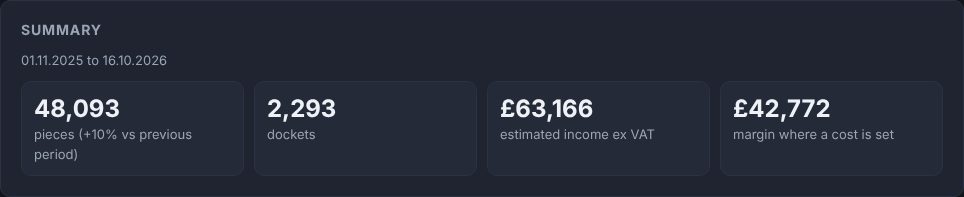
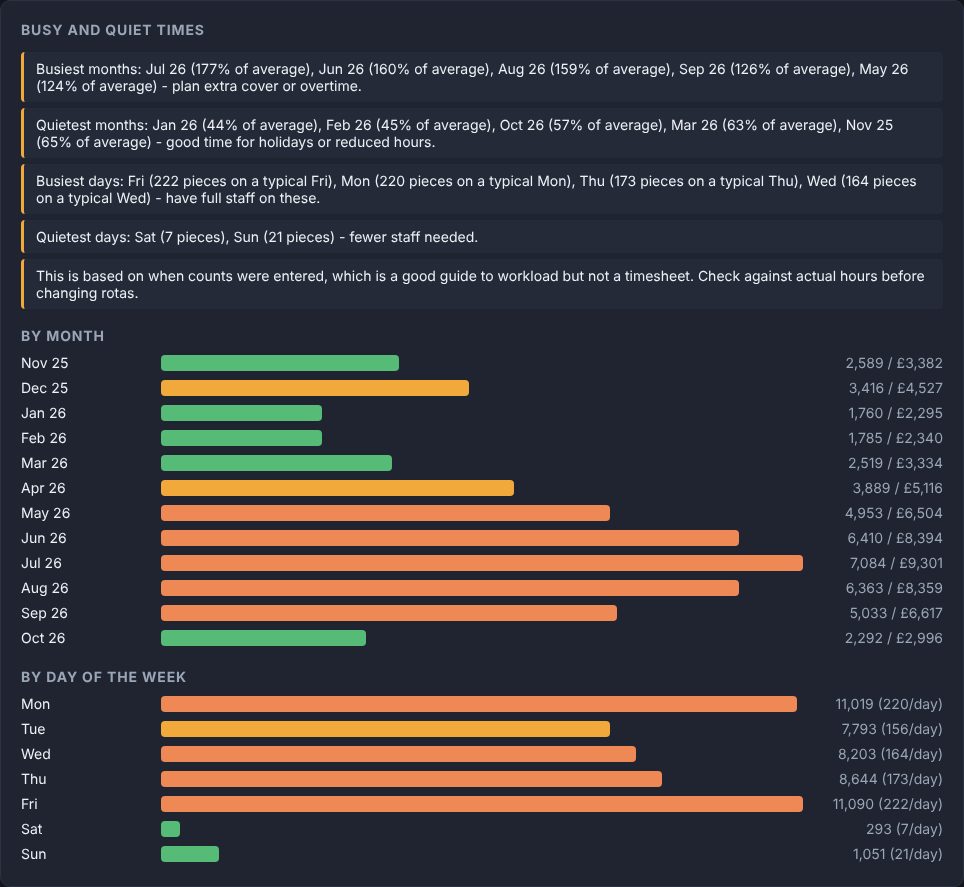
Plain-English advice on when to have full staff and when to plan holidays, built from when counts are actually entered.
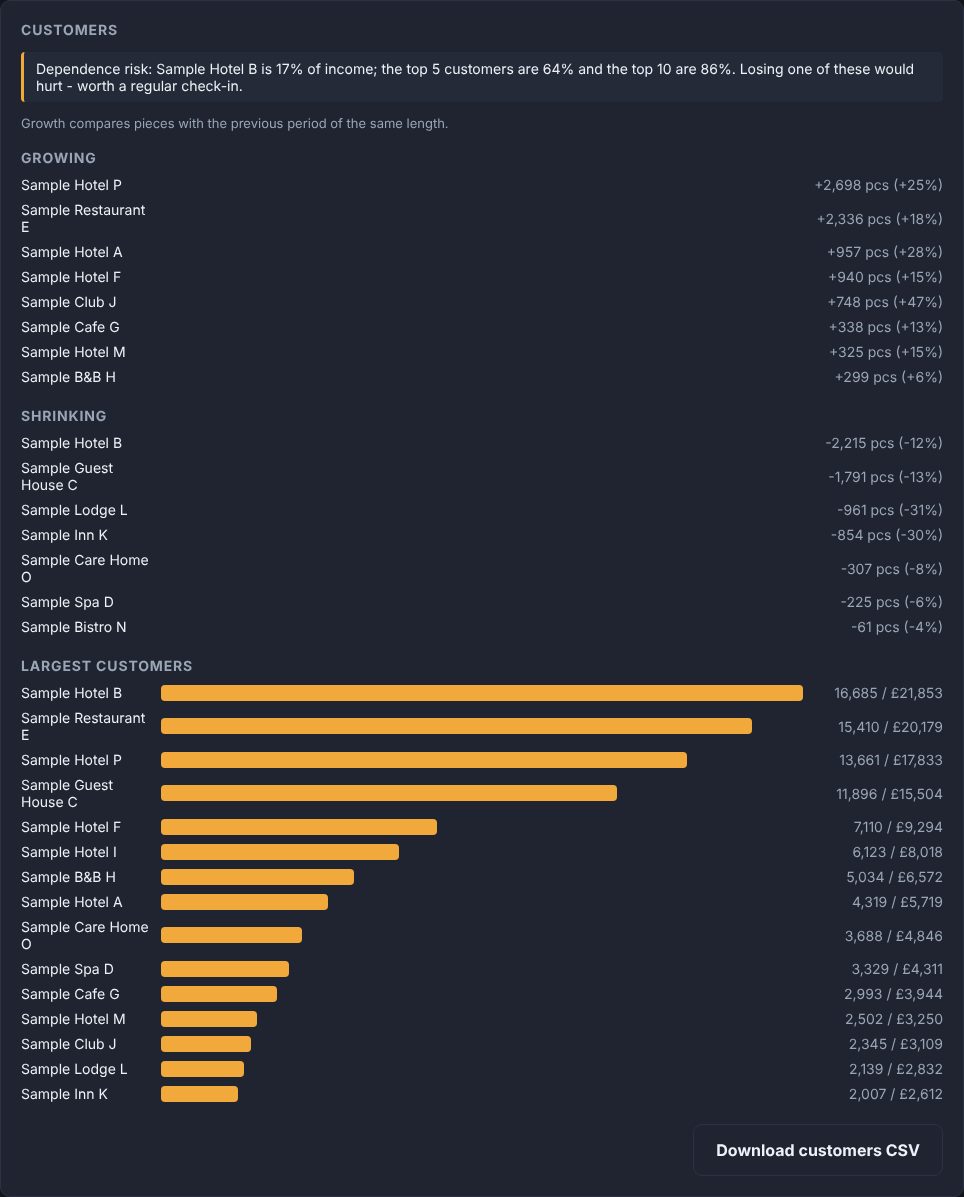
Every customer compared with the previous period, with a clear warning when too much income depends on a few names.
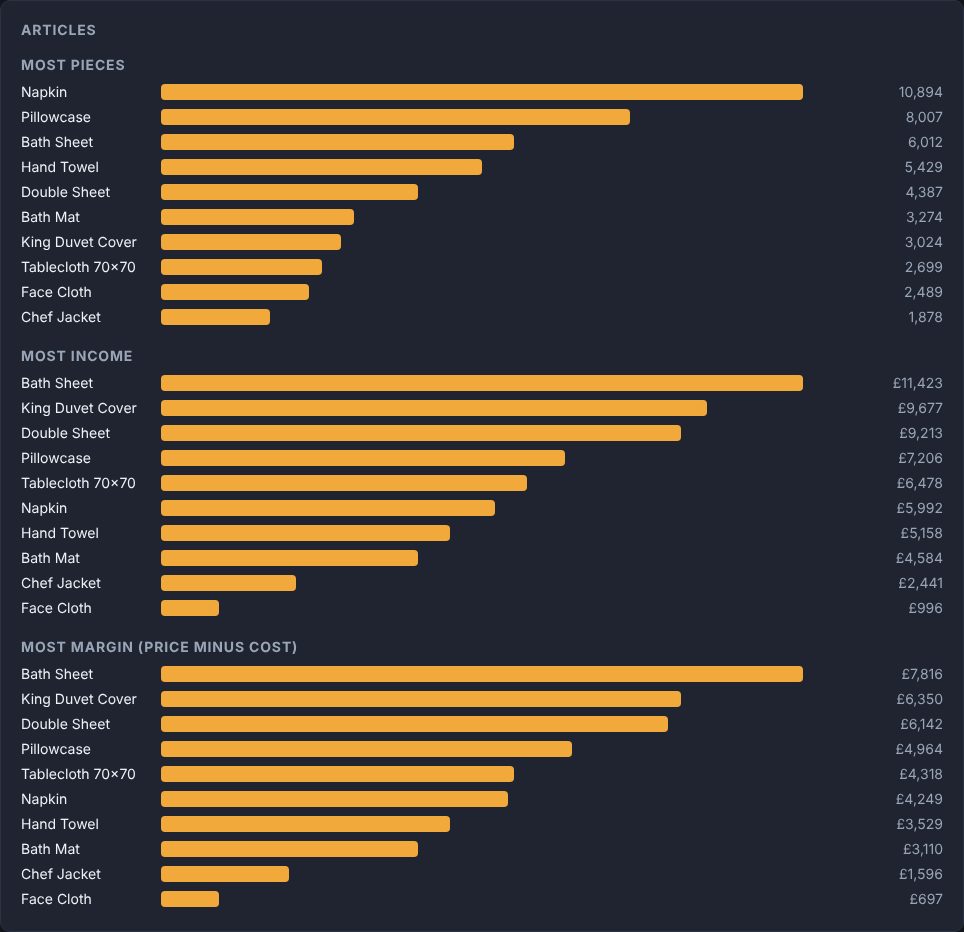
Enter a selling price, and optionally a cost, for each article once. Reports works out the rest.
The fairest growth figure, because it removes the seasons. It also checks what happened after each price rise.
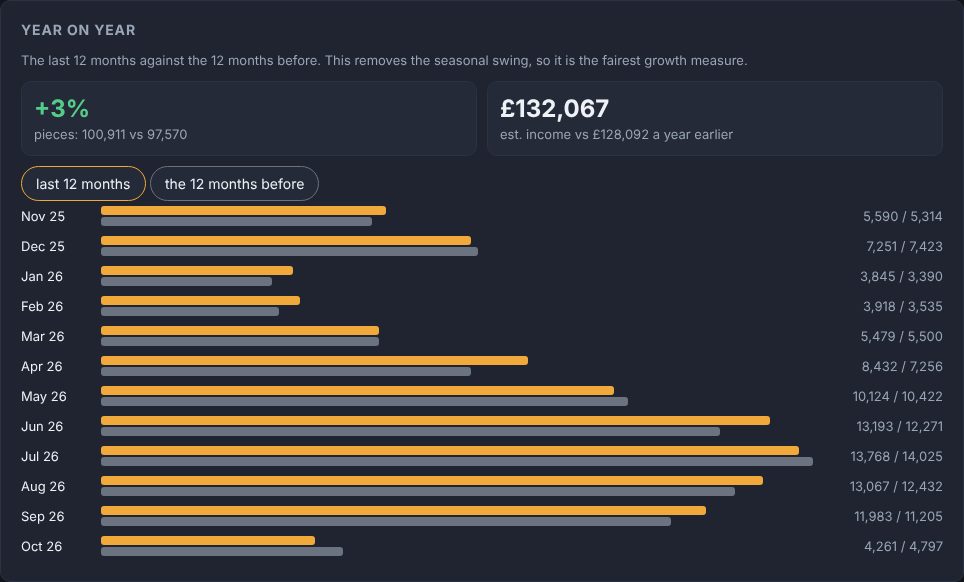
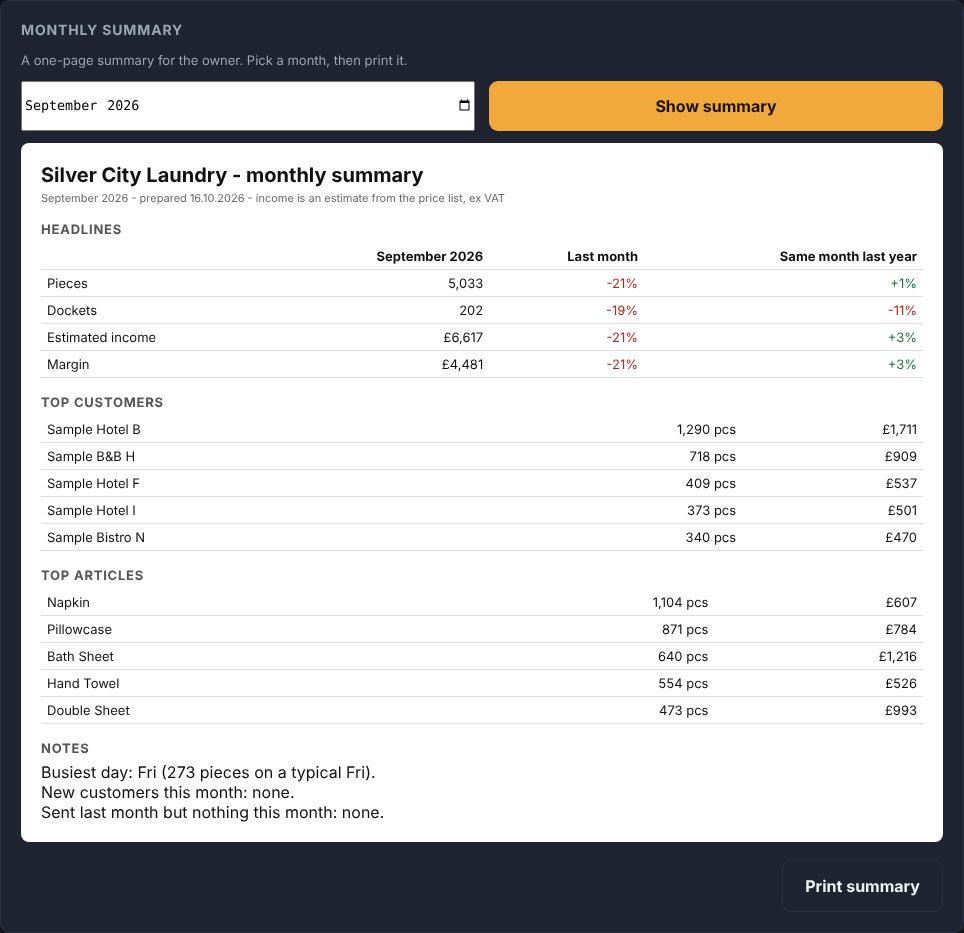
A one-page summary for the owner, ready to print each month.
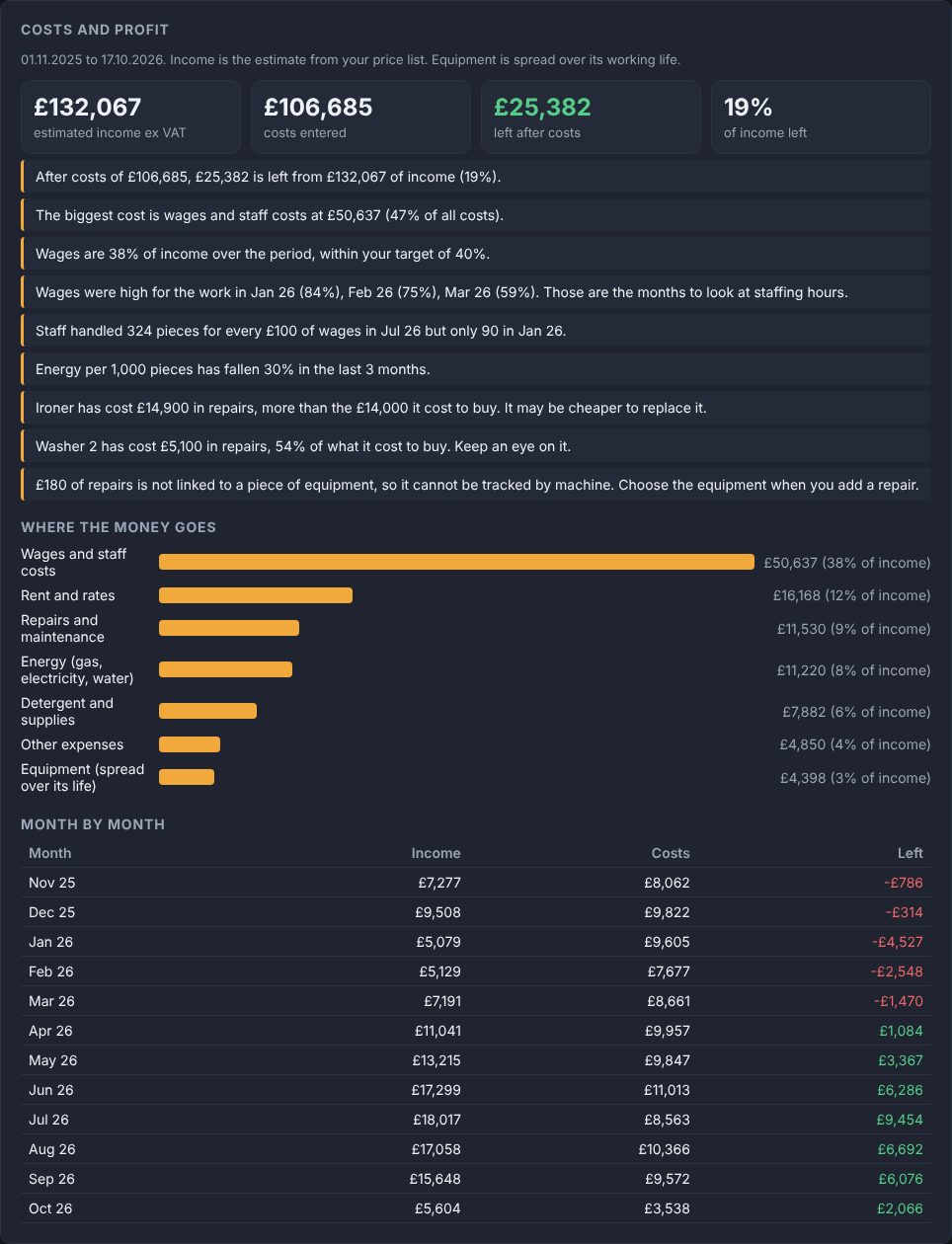
Reports also has a Costs area. Enter your wages, rent, energy, equipment and repairs, and every report can set what you earn against what it costs to earn it.
Enter rent, wages and other regular costs once, and one-off bills as they come. Reports shows what is left, month by month.
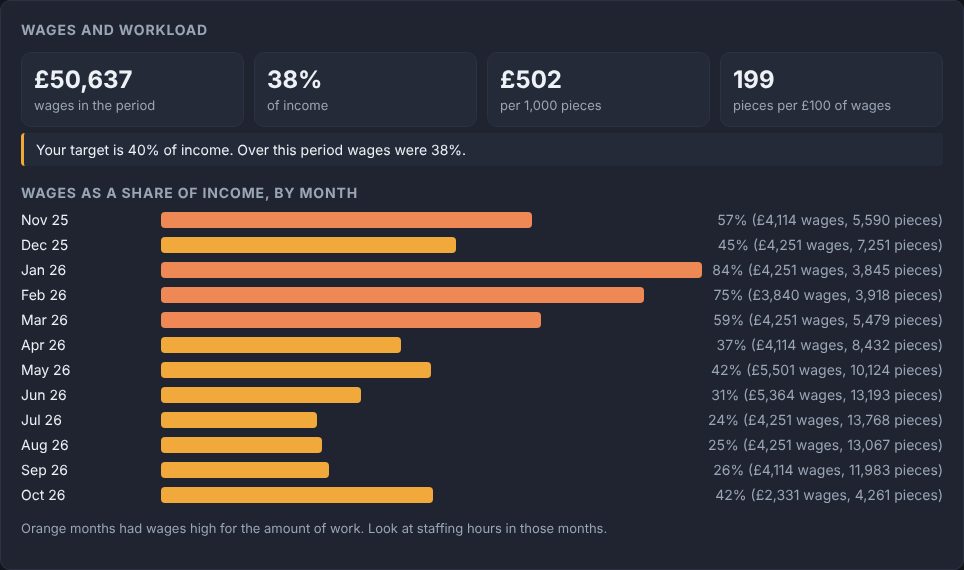
Wages set against the amount of work actually done, month by month.
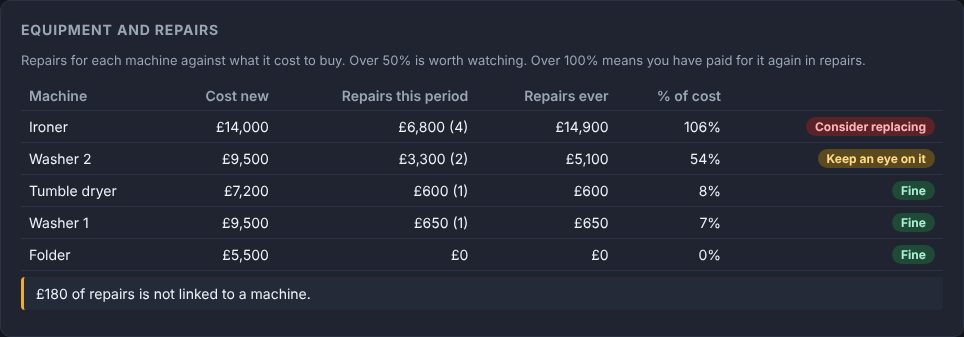
List each machine once, then choose it when you enter a repair. Reports totals what each has cost to keep running.
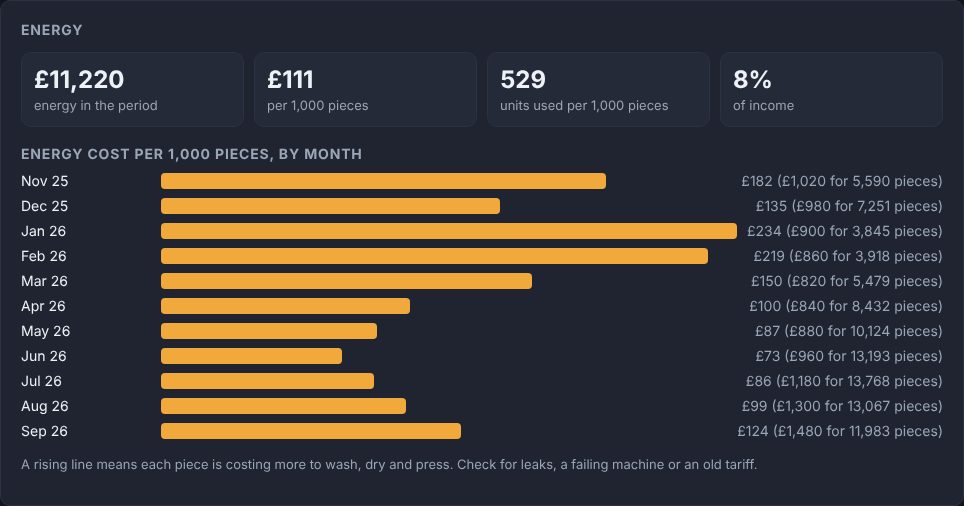
Gas, electricity and water set against the number of pieces washed, dried and pressed.
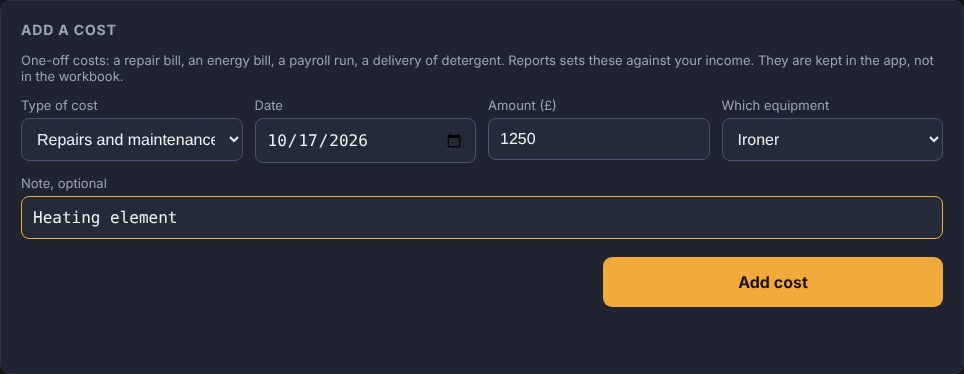
A simple form, kept apart from the workbook. Add a repair, a bill or a payroll run in a few taps.
Enter a selling price, and a cost if you wish, for your busiest articles. About 15 minutes.
Enter regular costs such as rent and wages once. Add repairs and bills as they happen. Optional, but it turns income into profit.
Pick 1 year, 2 years, 5 years, all dates, or your own dates. Reports reads every customer sheet.
Work down the page, print the monthly summary, or download the customer figures.
No. It only reads the dates and counts already on each customer's sheet. The one thing it stores is your price list, kept with the app settings, not in the workbook.
Yes, as long as the date and counts are on the customer's sheet in the usual layout. That is why it is useful from the first day.
No. The reports on customers, busy periods and articles work without them. Add costs when you want to see profit, wages against workload, machine costs and energy per piece. You can start with just rent and wages and add the rest later.
In a separate file in the same OneDrive folder as the workbook, so they never mix with your customer sheets. Only someone with the admin PIN can see or change them.
Only someone who unlocks Admin with an admin PIN. Staff never see Reports.
It is an estimate: pieces multiplied by the price you enter, excluding VAT. Customers with special rates will be approximate, so use it as a guide.
The app carries on counting and printing as normal. Only Reports switches off, and it can be switched back on later.
Reports are for the office. Unlock Admin first with an admin PIN, then come back here.
Built from every dated count in the workbook, so it includes history from before this app. It reads all customer tabs, which takes a minute or two.
Choose a period to build the report.
Add your wages, rent, energy, equipment and repair costs to see profit, wage costs against workload, and which machines cost too much to keep.
Look at one customer, or pick up to 4 to compare side by side. Uses the same period and price list.
Growth compares pieces with the previous period of the same length.
The last 12 months against the 12 months before. This removes the seasonal swing, so it is the fairest growth measure.
Volume in the 90 days before each price increase noted on customer tabs, against the 90 days after. Only increases with a full 90 days of counts either side are shown. Season and weather also move volume, so treat this as a guide.
Year by year across the chosen range. Part years are compared per month so they are fair.
Each article compared with the previous period of the same length. Lines that are shrinking may be using machine time and labour that would earn more elsewhere - check the margin before deciding.
A one-page summary for the owner. Pick a month, then print it.
Income is worked out as pieces x price (excluding VAT) using one price per article. Enter the usual selling price, and optionally your cost per piece (wash, labour, linen wear) to see margin. Customers with special rates will be approximate.
Know who counted what, and when. Every saved count is already being recorded. The viewer lets the office look back through it.
Each saved count is logged with who counted it, the time, the customer, the S.No and the number of pieces.
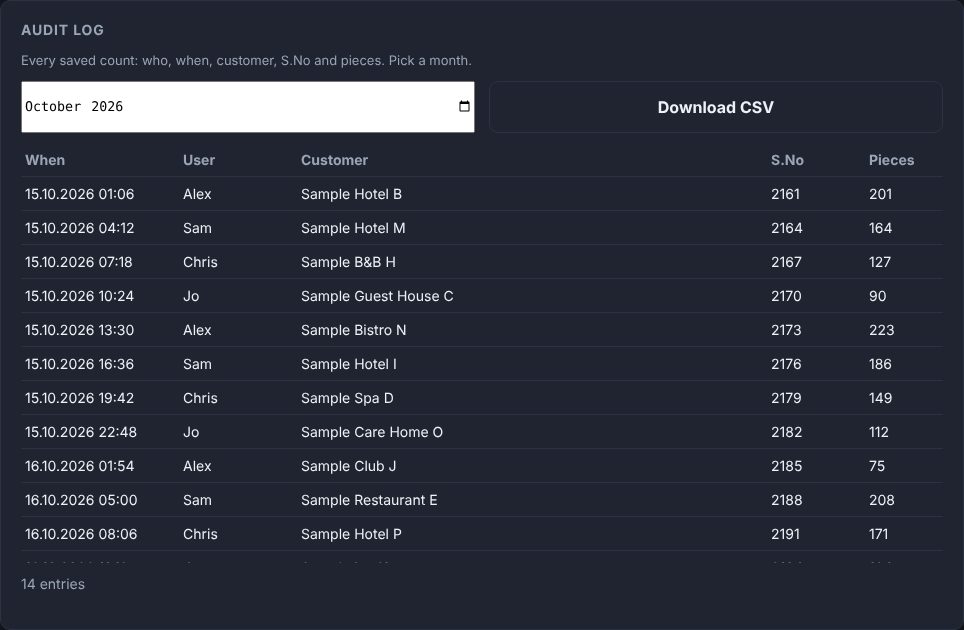
Search back to the exact count when a customer questions an order.
Each user has their own name on every count they take.
Download a month for the office, an audit or your accountant.
Every saved count: who, when, customer, S.No and pieces. Pick a month.
One-off costs: a repair bill, an energy bill, a payroll run, a delivery of detergent. Reports sets these against your income. They are kept in the app, not in the workbook.
Costs that repeat, such as rent, weekly wages or a monthly energy payment. Enter them once and they count for every month until you end them.
List each big machine once. Choose it when you add a repair and Reports will show what each machine has cost to keep running, against what it cost to buy. The purchase price is spread over its working life in the profit figures.
A copy of the workbook and the app settings is saved into a Backups folder next to the workbook (the last 14 are kept). Choose how often below, or press Back up now.
Runs the first time the app is used once a backup is due, so the tablet needs to be switched on and open. It does not run while nobody is using the app.
To restore the workbook: open OneDrive, go to the Backups folder, copy the backup you want back into the App folder and rename it to the live workbook name. Ask Everest Technology if you are unsure.
The app checks for a newer version every few minutes and updates itself when nobody is in the middle of a count.
A green dot at the top means the app can reach the sheet; red means it cannot. Only admins see it. If the sheet or the internet is down, users carry on as normal: counts are kept safely on the tablet, dockets still print, and everything is sent when the sheet is back.
Counts that may need a look. For example, a count that could not be saved to the sheet at the time, or one the office had already entered by hand. Review each item, then press Done.
These customers have only a few free rows left. Add rows in the workbook before they run out so no count has to be held. The notice clears by itself once a count is saved and there are enough rows again.
If the sheet cannot be reached when users press Save & Print, the app stores the count on the tablet and the docket still prints. Stored counts are sent to the sheet automatically every 5 minutes. You can also send them now, or download a list to key in by hand.
Change this at the start of each new month/file, then press Save. Example: /App/Invoices.xlsm
This tablet only.
Copies to print for each docket
Each copy is labelled and cut separately, with space for the customer to sign and the driver to initial. Copies apply to direct printing only.
Give the printer a fixed address in the router. The printer and the tablet must be on the same network. Direct printing needs the printer's secure certificate set up once (see the printer setup guide). Saved for every device at this site.
Choose the style and whether the screen is light or dark. It applies to every tablet and staff cannot change it. This does not change any information or what is printed.
The admin sees the warning when unlocking Admin. Staff never see it. Enter 0 to switch it off.
Leave a box empty to print nothing. The office copy shows who counted the order instead. Saved for every device at this site.
Each tablet or PC that opens the app uses one place. A device that has not been used for 30 days is released automatically. Remove a device here to free its place. The network address is the public IP address the device last connected from. "Different network" means it was not the same as the first device, for example mobile data, a home connection or another site. That is only a prompt to check, because addresses can change.
An administrator needs to accept these terms before the admin area can be used.
A short guide to running the app. Press a heading to open it. Only the admin sees this page.
Nothing matches that. Try a shorter word.
The workbook in OneDrive is the master record. Every customer has their own sheet in it. When a user saves a count, the app writes it straight into that customer's sheet and prints the docket.
Users also have a Recent tab, but that only shows jobs counted on that one tablet.
If a customer's sheet has no free rows, staff see a neutral note and the count is held, never lost. When you unlock Admin you get an alert.
Low rows warning. The app also warns you before a sheet fills up. After a count is saved, if that customer has 5 free rows or fewer left, you see a notice when you unlock Admin and a list under Connection. Add rows in the workbook and press Done. Change the number, or switch the warning off with 0, in Admin, then Setup, then Low rows warning. Staff never see it.
These are optional add-ons and show as locked until purchased. Contact Everest Technology to add them.
If Reports is switched on: a Costs tab appears. Add regular costs (wages, rent, energy) once, one-off bills and repairs as they happen, and list your machines so repairs can be tracked by machine. The Reports tab then shows costs and profit, wages against workload, equipment and repairs, and energy per piece. Costs are optional and are kept in a separate file next to the workbook.
| Docket does not print | Check the printer is on and on the network, then use Test print in Setup. As a back-up, switch the print method to the tablet's print dialog. |
| Red dot or Sign in again bar | The Microsoft sign-in has lapsed. Press Sign in again. |
| No free rows alert | Add rows to that customer's sheet, then send the held counts from Connection. |
| This device is not registered | Remove an unused device in Licence, then sign in again on the tablet. |
| User forgot their PIN | Users, then Clear PIN, then Set PIN. |
| New customer not showing | Make sure it has its own sheet in the workbook, then refresh the customers in Connection. |
| Wrong S.No used | Correct it in the workbook. The app does not overwrite an existing S.No. |
| Tablet not on the latest version | Connection, then Check for updates now, or Goto start URL in the kiosk browser. |
| Admin locked itself | It locks after 60 seconds idle. Enter the admin PIN again. |
For help, changes or add-ons, contact Everest Technology.
Check it against the paper docket. Once saved, only an admin can change it.
Add rows to these customers' sheets in the workbook so no count has to be held.
What to do:
Staff were not stopped: each docket printed as normal. The counts are safe until you send them.